Sane Defaults for rxvt
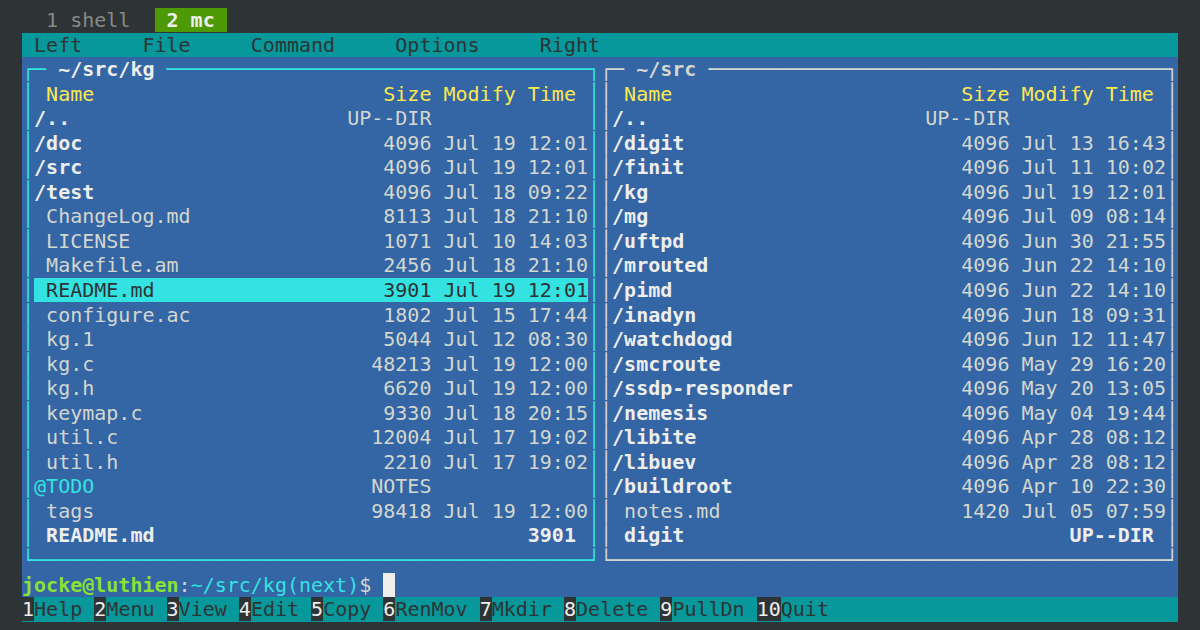
Mockup of rxvt new look, running Midnight Commander.
I want to test the editors I maintain, kg and mg, on as many
terminals as possible, and after bouncing between xterm, GNOME Terminal,
kitty, Alacritty and Terminator over the years, rxvt is the
one I keep coming back to – mostly for how far it bends to a plain
config file. So here’s how I set it up with a few sane defaults, or at
least how far I got …
The following writeup is part of my series; Reminders to self. Please let me know if there’s anything you’d like me to delve further into.
Installation
On Debian, Ubuntu and Linux Mint the package is the same: rxvt-unicode,
which provides the urxvt command. Install it together with clipboard
support – both xsel and libclipboard-perl are needed for copy/paste
to actually work:
$ sudo apt-get install rxvt-unicode xsel libclipboard-perl
Initial setup
Two of the extensions we want are not bundled with rxvt-unicode: clipboard
for real clipboard copy/paste, and tabbedex for a tab bar. Drop them
into your personal ext directory:
$ mkdir -p ~/.urxvt/ext
$ curl -o ~/.urxvt/ext/clipboard https://raw.githubusercontent.com/xyb3rt/urxvt-perls/master/deprecated/clipboard
$ curl -o ~/.urxvt/ext/tabbedex  https://raw.githubusercontent.com/mina86/urxvt-tabbedex/master/tabbedex
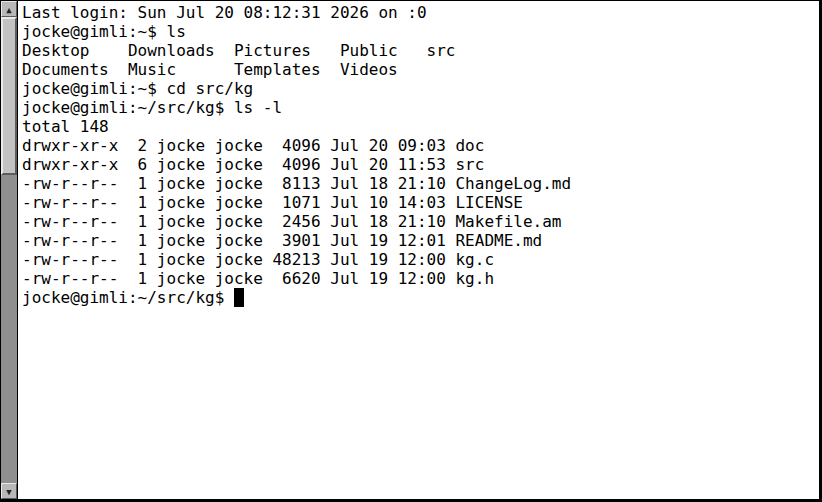
Out of the box experience.
Fire up urxvt now and you are met by the bare defaults – a chunky
old-school bitmap font, black-on-white, and that scrollbar clinging to
the left, and this is the good looking version! Let us fix that with a
few simple lines of plain text configuration.
Taming rxvt
Open your favorite text editor (kg, mg, or just plain
emacs) and drop the following into ~/.Xresources:
! --- Fonts & Rendering ---
URxvt.font: xft:DejaVu Sans Mono:size=11:antialias=true
URxvt.boldFont: xft:DejaVu Sans Mono:bold:size=11:antialias=true
URxvt.letterSpace: 0

! --- Scrolling & Geometry ---
! Default window size, columns x rows
URxvt.geometry: 100x42
URxvt.scrollBar: false
URxvt.saveLines: 10000
URxvt.cursorBlink: true
! No internal border, so the grid fills the window (no leftover padding)
URxvt.internalBorder: 0

! --- Bell & Behaviour ---
! Flag the window urgent (WM highlights it) instead of beeping
URxvt.urgentOnBell: true
URxvt.visualBell: true
! Skip redundant screen updates during fast output
URxvt.skipScroll: true

! --- Perl Extensions (Clipboard, Links & Tabs) ---
URxvt.perl-ext-common: default,clipboard,matcher,tabbedex
URxvt.url-launcher: /usr/bin/xdg-open
URxvt.matcher.button: 1

! --- Keyboard Shortcuts ---
! Turn off the ISO 14755 popup so Ctrl+Shift combos reach the terminal
URxvt.iso14755: false
URxvt.iso14755_52: false

! Alt = Meta (Esc prefix) so Emacs/readline word movement and mark/kill
! (C-SPC, M-b, C-w, M-w, C-y) work in the shell; the urxvt default, set
! explicitly here (xterm uses metaSendsEscape, see the appendix)
URxvt.meta8: false

! Ctrl+Shift+C / Ctrl+Shift+V for clipboard copy/paste
URxvt.keysym.Ctrl-Shift-C: eval:selection_to_clipboard
URxvt.keysym.Ctrl-Shift-V: eval:paste_clipboard

! rxvt sends the same bytes for Shift+arrow and Ctrl+Shift+arrow; remap
! Ctrl+Shift+arrows to distinct xterm-style codes (;6 = Ctrl+Shift)
URxvt.keysym.Control-Shift-Up:    \033[1;6A
URxvt.keysym.Control-Shift-Down:  \033[1;6B
URxvt.keysym.Control-Shift-Right: \033[1;6C
URxvt.keysym.Control-Shift-Left:  \033[1;6D

! Shift+Insert pastes PRIMARY in urxvt, send it on to the application
! instead (ESC [ 2 $, CUA paste in mg), Ctrl+Shift+Insert still pastes
URxvt.keysym.S-Insert:   builtin-string:
URxvt.keysym.C-S-Insert: builtin:

! Drop the default tabbedex Shift-Arrow keys, they clash with editors
! (e.g. Shift-Down starts a selection in mg), we bind our own below
URxvt.tabbedex.no-tabbedex-keys: true

! Tabs: new (Ctrl+Shift+T), next/prev (Ctrl+PgDn/PgUp), rename (Ctrl+Alt+A)
! Rename doubles as the window title, tabbedex ties the two together
! A tab closes when its shell exits, so Ctrl+D does the job
URxvt.keysym.Control-Shift-T: perl:tabbedex:new_tab
URxvt.keysym.Control-Next: perl:tabbedex:next_tab
URxvt.keysym.Control-Prior: perl:tabbedex:prev_tab
URxvt.keysym.Control-Meta-a: perl:tabbedex:rename_tab

! --- Color Palette (Tango) ---
URxvt.background: #2e3436
URxvt.foreground: #d3d7cf
URxvt.cursorColor: #eeeeec

! Selection highlight (instead of plain reverse video)
URxvt.highlightColor: #555753
URxvt.highlightTextColor: #eeeeec

! Tab bar (tabbedex): values are terminal palette indices (0-15)
URxvt.tabbedex.tabbar-bg: 0
URxvt.tabbedex.tabbar-fg: 8
URxvt.tabbedex.tab-bg: 0
URxvt.tabbedex.tab-fg: 2

! Black
URxvt.color0:  #2e3436
URxvt.color8:  #555753
! Red
URxvt.color1:  #cc0000
URxvt.color9:  #ef2929
! Green
URxvt.color2:  #4e9a06
URxvt.color10: #8ae234
! Yellow
URxvt.color3:  #c4a000
URxvt.color11: #fce94f
! Blue
URxvt.color4:  #3465a4
URxvt.color12: #729fcf
! Magenta
URxvt.color5:  #75507b
URxvt.color13: #ad7fa8
! Cyan
URxvt.color6:  #06989a
URxvt.color14: #34e2e2
! White
URxvt.color7:  #d3d7cf
URxvt.color15: #eeeeec
No need to logout/login to activate the settings, just merge them into the running X resource database:
$ xrdb -merge ~/.Xresources
Then fire up a fresh terminal, et voilà! \o/
$ urxvt
Tabs are numbered by default, and tabbedex shows the active tab’s title
at the right of the bar – which programs like mc set for you. To have
Bash fill it in as well, set the title from ~/.bashrc:
PROMPT_COMMAND='printf "\033]2;%s\007" "${PWD/#$HOME/~}"'
That updates the title shown on the right. To put a label on the tab itself, rename it with Ctrl+Alt+A – and since tabbedex ties tab and window title together, that is also how you set the window title.
If you start X yourself from a window manager like Awesome, rather
than from a display manager, make sure the resources get loaded at every
session start. Add this near the top of your ~/.xinitrc:
[ -f ~/.Xresources ] && xrdb -merge ~/.Xresources
Tip: On low-resource systems, run
rxvtin daemon mode. Start the daemon once withurxvtd -q -f -o(e.g. from your~/.xinitrc), then open windows with the tinyurxvtcclient instead ofurxvt. They all share a single process, so every extra terminal is nearly free.
One rxvt quirk worth knowing: by default it sends the same bytes for
Shift+arrow and Ctrl+Shift+arrow, so no application can tell them apart.
The four Control-Shift-* lines above remap Ctrl+Shift+arrows to the
modern xterm codes (\e[1;6X, where 6 means Ctrl+Shift) to break that
tie. If you want every modifier to match xterm (so apps that expect
those codes just work), normalise the rest too:
URxvt.keysym.Shift-Up:      \033[1;2A
URxvt.keysym.Shift-Down:    \033[1;2B
URxvt.keysym.Shift-Right:   \033[1;2C
URxvt.keysym.Shift-Left:    \033[1;2D
URxvt.keysym.Control-Up:    \033[1;5A
URxvt.keysym.Control-Down:  \033[1;5B
URxvt.keysym.Control-Right: \033[1;5C
URxvt.keysym.Control-Left:  \033[1;5D
The terminal then hands the application a distinct code for each combo; whether it acts on them is up to the application’s own key bindings.
Not every application needs that, though. mg, from the release after 4.3, understands rxvt’s own codes for Shift, Ctrl and Alt with the arrows, Home, End, PgUp, PgDn, Insert and Delete.
Shift+Insert is a different story. urxvt grabs it and pastes the
PRIMARY selection, i.e., whatever you last selected with the mouse –
so the IBM CUA paste in your editor never sees the key, and you get the
wrong text pasted in. The two S-Insert lines above turn that off:
builtin-string: makes urxvt send the key on as ESC [ 2 $, and the
C-S-Insert line keeps Ctrl+Shift+Insert as the PRIMARY paste. In the
shell you still have Ctrl+Shift+V and the middle mouse button.
Shift+PgUp and Shift+PgDn are grabbed the same way, for the scrollback. If you’d rather have them in your editor, at the cost of scrolling back in the shell, add:
URxvt.keysym.S-Prior: builtin-string:
URxvt.keysym.S-Next:  builtin-string:
Testing your keys
Remember, running terminals keep their old settings, so after xrdb -merge open a new one. Then run cat -v and press some keys to see
what the terminal actually sends, ^[ is ESC:
| Key | rxvt sends | xterm sends |
|---|---|---|
| Shift+Right | ^[[c |
^[[1;2C |
| Ctrl+Right | ^[Oc |
^[[1;5C |
| Alt+Up | ^[^[[A |
^[[1;3A |
| Ctrl+Home | ^[[7^ |
^[[1;5H |
| Shift+Insert | ^[[2$ |
^[[2;2~ |
| Ctrl+Insert | ^[[2^ |
^[[2;5~ |
| Shift+Delete | ^[[3$ |
^[[3;2~ |
If Shift+Insert pastes text instead of printing ^[[2$, the resource
did not take. Press Ctrl+C to get out of cat.
With the codes sorted out, open a file in mg and give the keys a spin:
- Shift+arrows, Shift+Home/End mark text
- Shift+Delete cuts the marked text, Shift+Insert pastes it back
- Ctrl+Insert copies, Ctrl+Delete kills the next word
- Ctrl+arrows move by word and paragraph, Ctrl+Home/End to the start and end of the buffer
- C-x 2 splits the window, Alt+Up/Down moves between the windows, and Alt+Shift+arrows resize them
Ctrl+PgUp and Ctrl+PgDn never reach the editor with the setup above, tabbedex uses them to switch tabs.
Appendix: Taming xterm
The same file can tidy up good old xterm too, and it’s worth having
around for the odd remote xterm you get thrown into. One wrinkle:
uxterm is just xterm started with -class UXTerm, but the instance
name stays xterm. So write the resources under lowercase xterm*
and they apply to both:
! --- Fonts & Size ---
xterm*faceName: DejaVu Sans Mono
xterm*faceSize: 11
xterm*geometry: 100x42

! --- Scrolling & Behaviour ---
xterm*saveLines: 10000
xterm*scrollBar: false
xterm*cursorBlink: true
xterm*termName: xterm-256color
! Let Alt work as Meta, so Emacs and readline behave
xterm*metaSendsEscape: true
! UTF-8 (uxterm forces this regardless)
xterm*locale: true

! --- Bell ---
xterm*bellIsUrgent: true
xterm*visualBell: true

! --- Clipboard (Ctrl+Shift+C / Ctrl+Shift+V, like GNOME Terminal) ---
xterm*selectToClipboard: true
xterm*VT100.translations: #override \
    Ctrl Shift <Key>C: copy-selection(CLIPBOARD) \n\
    Ctrl Shift <Key>V: insert-selection(CLIPBOARD)

! --- Color Palette (Tango) ---
xterm*background: #2e3436
xterm*foreground: #d3d7cf
xterm*cursorColor: #eeeeec
xterm*highlightColor: #555753
xterm*highlightTextColor: #eeeeec

xterm*color0:  #2e3436
xterm*color8:  #555753
xterm*color1:  #cc0000
xterm*color9:  #ef2929
xterm*color2:  #4e9a06
xterm*color10: #8ae234
xterm*color3:  #c4a000
xterm*color11: #fce94f
xterm*color4:  #3465a4
xterm*color12: #729fcf
xterm*color5:  #75507b
xterm*color13: #ad7fa8
xterm*color6:  #06989a
xterm*color14: #34e2e2
xterm*color7:  #d3d7cf
xterm*color15: #eeeeec
Same xrdb -merge to activate, and xterm (or uxterm) picks it up on
next launch.
See? It’s all really simple. :-D